Call or Text: +1 (208) 425-2990
Email: Sales@DroneSprayPro.com

How to Sync DJI Agras Flight Logs Automatically
Syncing DJI Agras flight logs automatically saves time and prevents data loss. With tools like DJI SmartFarm and AirData UAV, you can securely upload flight data to the cloud, ensuring compliance with FAA regulations and improving operational efficiency. Here's what you need to know:
- Why It Matters: Automatic syncing protects data from device damage, ensures FAA compliance, and provides detailed insights into drone operations (e.g., spray coverage, battery health and charging cycles).
- Supported Models: DJI Agras T10, T20, T20P, T25, T30, T40, and T50.
-
Setup Options:
- DJI SmartFarm: Sync logs via the app by enabling auto-sync and verifying uploads.
- AirData UAV: Use the mobile app or web portal to sync logs, with added flexibility and analytics.
- Troubleshooting: Address issues like missing logs, internet problems, or failed syncs by reconnecting, verifying credentials, or manually uploading files.
Both platforms simplify drone data management, reduce errors, and centralize records for better decision-making. Whether managing one drone or a fleet, automatic syncing ensures accurate, updated logs without manual effort.
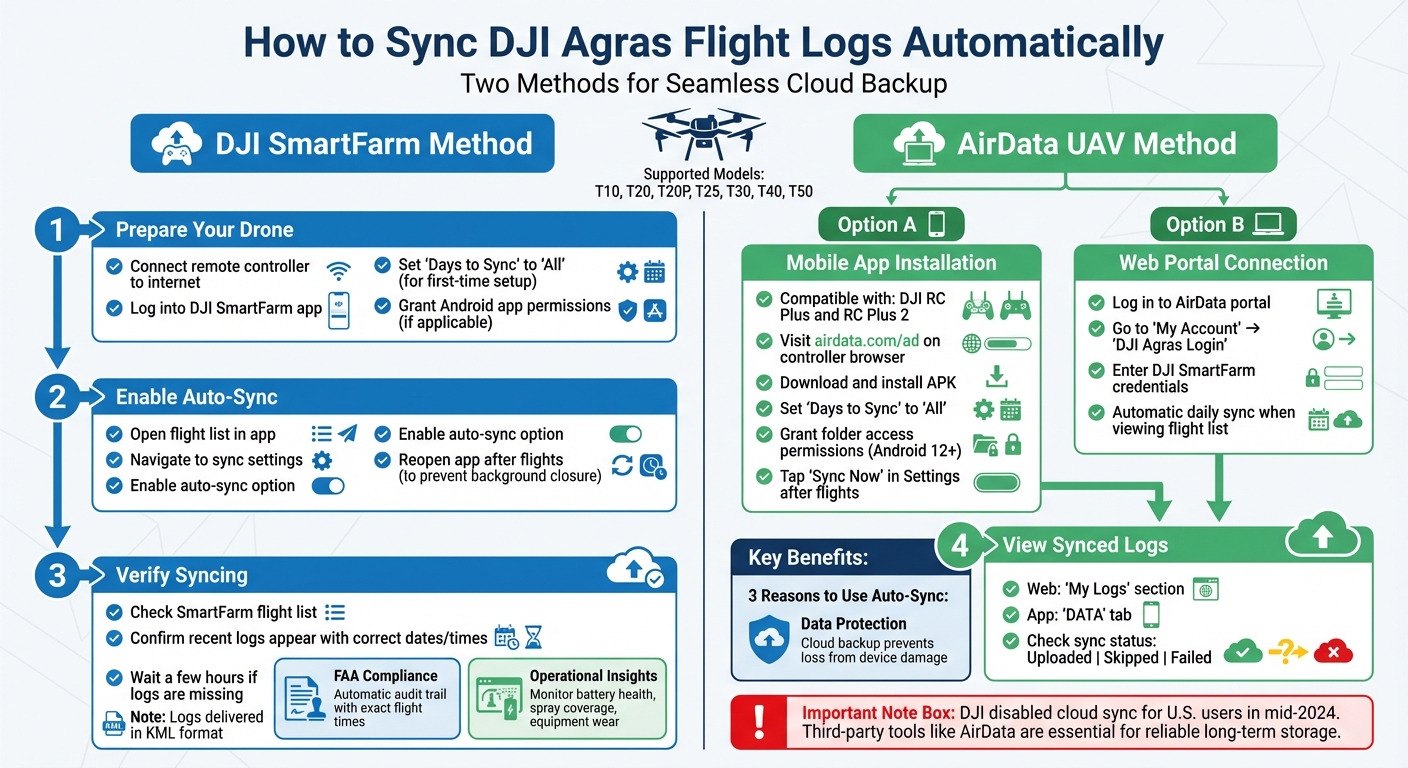
DJI Agras Flight Log Auto-Sync Setup Guide for SmartFarm and AirData UAV
DJI Agras T50 - Uploading Flight Logs
sbb-itb-3b7eef7
Why You Need Automatic Flight Log Syncing
Agricultural drone operators deal with unique challenges when managing flight data across multiple spray operations. Automatic syncing helps tackle three key issues: safeguarding your records, staying compliant with federal regulations, and gaining deeper insights into your operations.
Protecting Your Data with Cloud Backup
Fieldwork can be tough on devices - mud, rain, or accidental drops can wipe out weeks of locally stored flight logs. With automatic syncing to the cloud, every flight log gets securely backed up as soon as you're online. This eliminates the risk of losing critical data due to damaged equipment.
The need for secure backups became even more pressing after DJI disabled cloud synchronization for U.S. users in mid-2024. Operators had until November 2024 to download their logs before DJI began deleting them from their servers [4]. This shift highlighted the importance of third-party syncing tools for agricultural operators who need reliable, long-term data storage.
Meeting FAA Record-Keeping Requirements
Accurate flight records are a must for FAA compliance in commercial agricultural operations. Manual logging often leads to mistakes - missed entries, incorrect times, or incomplete data can create issues during inspections.
Automatic syncing solves this by pulling flight data straight from your drone's hardware. It provides a permanent audit trail, recording exact flight times, operational details, and timestamps. This not only ensures compliance with FAA requirements but also helps track pilot qualifications and aircraft maintenance schedules [2]. Plus, these logs can offer valuable insights to improve your operations.
Getting Better Data from Your Operations
Beyond securing records, automatic syncing delivers detailed insights into your drone operations. You can monitor battery health, assess spray coverage, and track equipment wear over time. This data helps pinpoint when batteries need replacement, which fields may require extra attention, or when maintenance is due - based on actual usage, not guesswork.
For operators managing multiple drones, automatic syncing centralizes all flight logs in one place. This makes it easier to review team performance, create reports, and maintain consistent records across your entire operation - without chasing down individual controllers or memory cards.
How to Set Up Auto-Sync in DJI SmartFarm App
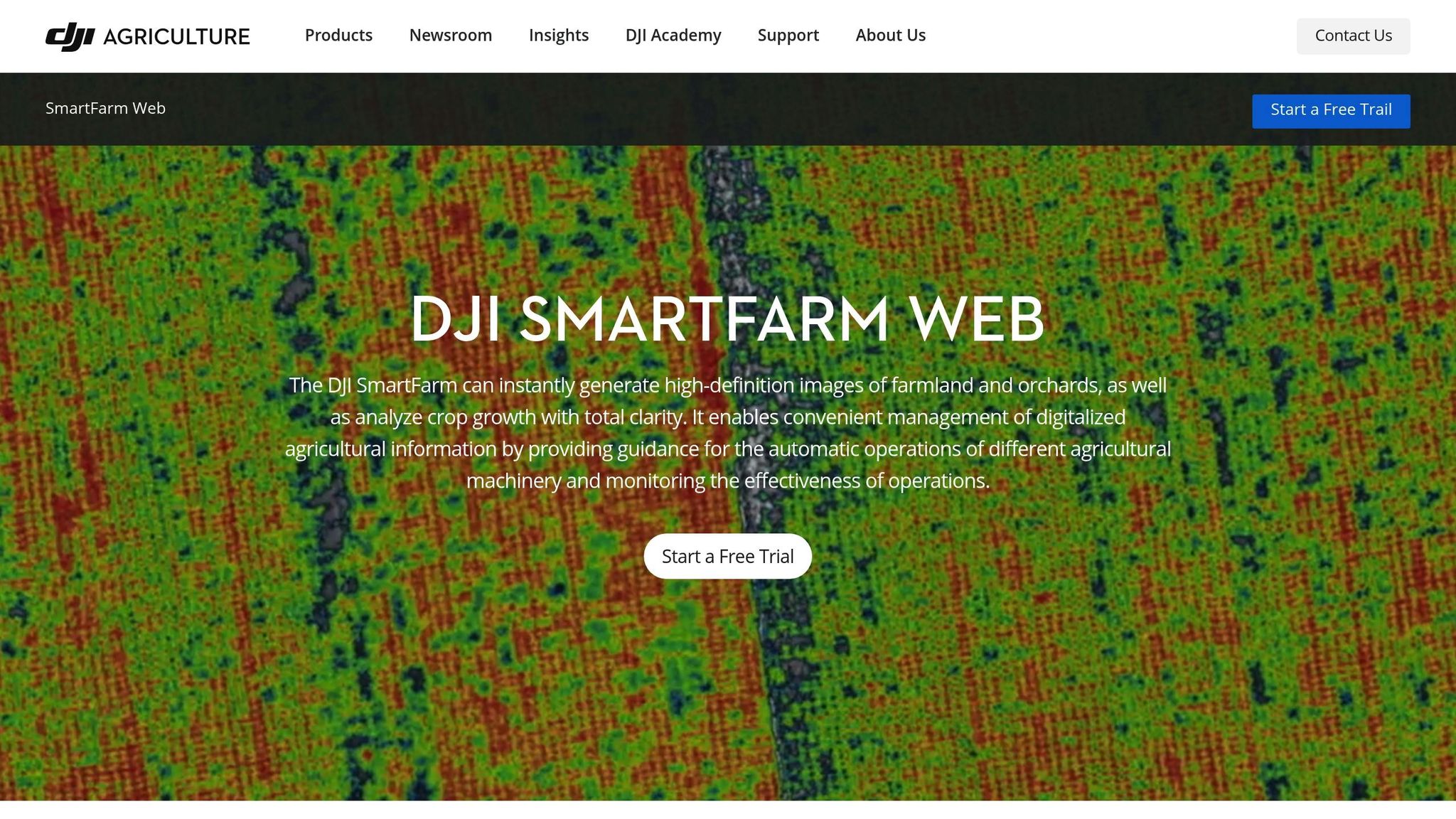
The DJI SmartFarm app simplifies flight log syncing for DJI Agras T-series drones, including the T10, T20, T20P, T25, T30, T40, and T50. It works by uploading flight logs to DJI's servers, making them accessible for third-party management tools like AirData UAV [2].
Preparing Your DJI Agras Drone
Start by ensuring your remote controller is connected to the internet. Then, log into the DJI SmartFarm app using the same account you used during your drone flights.
If this is your first time setting up syncing, adjust the "Days to Sync" option to "All." This ensures that the app captures your entire flight history stored on the device. For Android-based controllers, double-check that the app has permission to access the DJI flight app folders in your device's settings.
Once your drone is ready and your account is verified, you can move on to enabling auto-sync.
Enabling Auto-Sync
To activate auto-sync, open the flight list within the app. Navigate to the sync settings (usually found under the account or settings menu) and enable auto-sync by selecting the "Sync" option. If logs don’t upload automatically, this manual step ensures data transfer.
Important: Some Smart Controllers may close background apps, which could interrupt syncing. To avoid this, reopen the sync app after your flight to complete the data transfer.
Verifying Log Syncing
After enabling auto-sync, it’s important to confirm that your logs are being transferred correctly. Check the SmartFarm flight list to see if recent logs appear with accurate dates and times. If any logs are missing, wait a few hours and try again, as server delays can occasionally occur.
"After flying, be sure to synchronize your flights to the DJI Cloud... If you forgot to do so, Airdata will not be able to retrieve the latest flights." - AirData UAV [3]
Flight logs are delivered in KML format. Keep in mind that these logs may not include detailed telemetry data, such as individual battery cell information, which is available in logs from other DJI aircraft [2].
Setting Up AirData UAV for Automatic Syncing
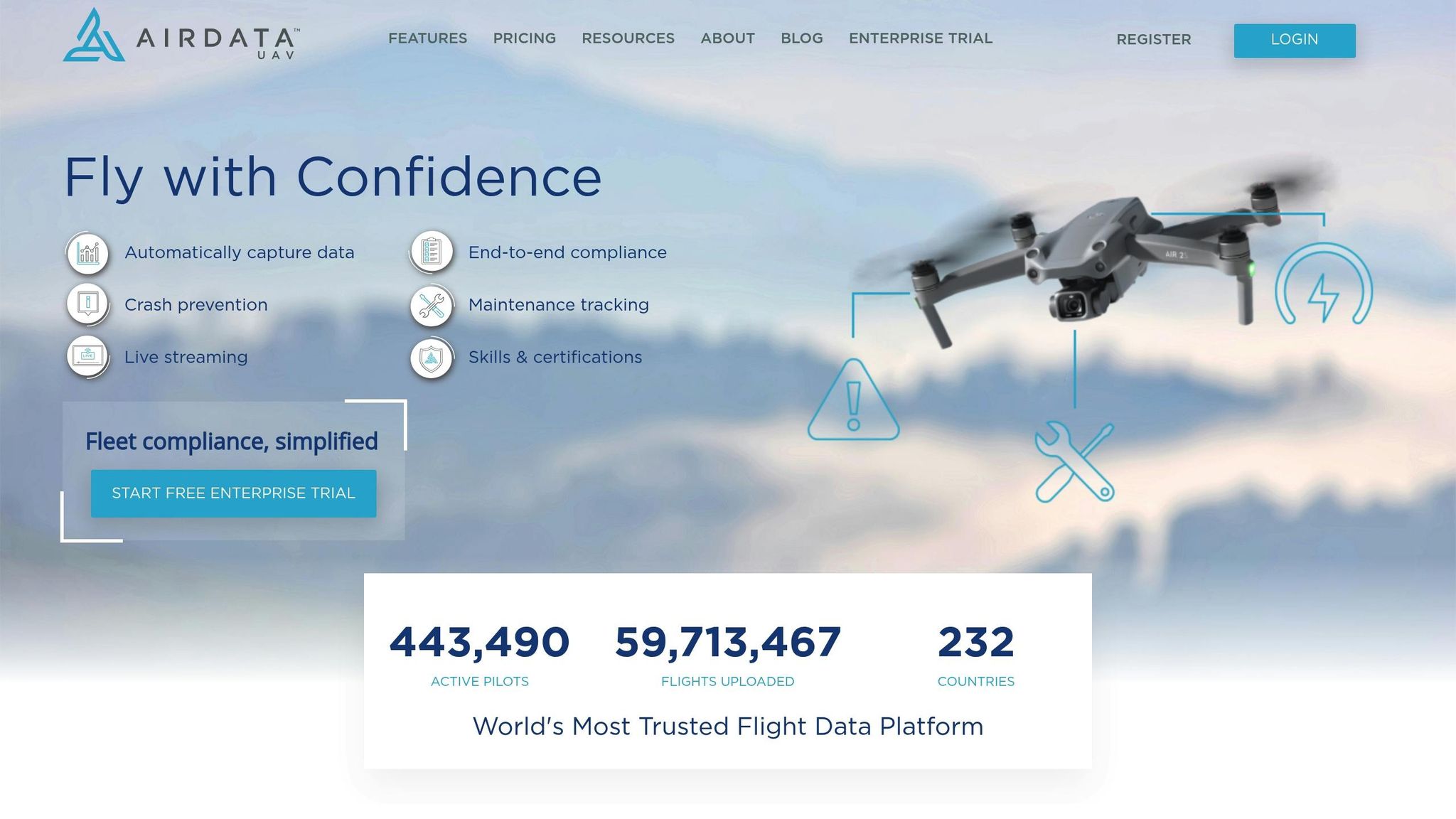
AirData UAV provides two ways to sync your DJI Agras flight logs: installing the mobile app directly on your controller or linking your DJI SmartFarm account through the web portal. This setup serves as an alternative to the SmartFarm system, offering more flexibility for operators. Both methods are compatible with DJI Agras models, including the T10, T20, T20P, T25, T30, T40, and T50.
Installing AirData UAV on Your Controller
The AirData UAV app supports DJI RC Plus and RC Plus 2 controllers. To get started, open the web browser on your controller and visit airdata.com/ad to download the APK.
When you log in for the first time, set "Days to Sync" to "All" to ensure the app uploads your entire flight history. If your controller runs Android 12 or a newer version, the app will request access to specific flight folders (e.g., Android/data/dji.go.v5). Grant all requested permissions to enable proper functionality. Once the app is installed and the initial setup is complete, you can enable automatic syncing.
Enabling Auto-Sync in AirData UAV
To activate the auto-sync feature, you can use either the mobile app or the web portal. For the web option, log in to the AirData portal and go to "My Account" → "DJI Agras Login." Enter the same DJI SmartFarm credentials you use for your drone operations. Once connected, AirData will automatically check for new flights daily when you view your flight list.
If you prefer immediate syncing via the mobile app, open the Settings menu and tap "Sync Now." Keeping the app open for a few minutes after your flights ensures that uploads complete without interruptions.
Viewing Your Flight Logs in AirData
Synced flight logs can be found under the "My Logs" section of the web portal or the "DATA" tab in the mobile app. To confirm successful uploads, check the DJI Agras Login page on the web portal or review "Sync Results" in the app's Settings.
Each flight log will display a status:
- Uploaded: The log successfully transferred.
- Skipped: The log was already synced.
- Failed: The upload did not complete.
Flight logs are provided in KML format, capturing all key flight data.
"We recognize the importance of providing innovative solutions that address the vertical-specific needs of our customers. It has been an important commitment for our team to deliver automated flight log syncing for the DJI Agras."
– Eran Steiner, CEO, AirData
Fixing Common Syncing Problems
Even with automatic syncing turned on, syncing issues can still crop up, causing flight logs to fail to upload properly. These problems are often tied to connectivity issues, mismatched credentials, or temporary glitches with DJI Cloud. Keeping your flight logs up to date is critical - not just for data backup, but also to comply with FAA regulations and streamline operations. Below are some common syncing issues and their solutions to help you keep your logs in order.
No Internet Connection
Flight logs typically upload automatically when your device reconnects to the internet. For DJI Agras drones (like the T10, T20, T20P, T25, T30, T40, and T50), syncing must first occur with DJI's servers via the SmartFarm platform before AirData can access them[2].
If logs are missing after reconnecting, you can force an upload through the AirData UAV app by tapping "SYNC NOW." Alternatively, on the web portal, go to "My Account" → "DJI Agras Login" and click "Sync." To ensure a smooth sync, keep the mobile app open in the foreground after flying until the process is complete.
On DJI Smart Controllers, the system may close background apps like AirData when the flight app is active. In these cases, manually reopen the AirData app after landing to start syncing. If internet connectivity continues to be an issue, you can connect your controller to a computer via USB, locate the log files, and manually upload them through AirData's "Upload" page.
Sync Failed Errors
A "Sync Failed" error often points to issues like DJI Cloud outages, credential mismatches, or permission problems. Even if the DJI app shows a successful sync, logs might not make it to the cloud during an outage. Waiting a few hours and trying again usually resolves this.
Make sure the DJI credentials saved in AirData's "DJI Agras Login" match those in your SmartFarm app. To ensure all historical flights are detected, set the "Days to Sync" option in the AirData app to "All." If the app defaults to an incorrect user, clear its storage and cache through your device's settings.
On Android 13 and 14 devices, a bug in the system "Files" app may prevent AirData from accessing flight log folders. Downgrading the system "Files" app can restore access. If problems persist, use the "Send debug info to AirData" feature in the app settings to help their support team diagnose the issue.
Missing Flight Logs
Missing logs often occur due to account mismatches or incomplete syncing with DJI's SmartFarm platform. Start by checking if your flights appear in the DJI SmartFarm app. Logs must successfully sync with DJI's servers before AirData can retrieve them.
Verify that your SmartFarm and AirData credentials match, then use the "Sync" option for an immediate update. Be aware that DJI sometimes uploads flight records while the drone is still in the air, which can result in incomplete logs[5].
As of June 2024, DJI disabled cloud syncing for DJI Fly and DJI Pilot 2 users in the United States[5]. For U.S.-based operators, the best workaround is to install the AirData UAV mobile app directly on your controller (RC Plus or RC Plus 2). This allows logs to sync directly with AirData, bypassing DJI Cloud restrictions entirely.
Wrapping Up
Setting up automatic flight log syncing for your DJI Agras drone can save you a ton of time and make your operations run smoother. With auto-sync, your logs are uploaded to the cloud as soon as you're online, cutting out the need for manual transfers. The result? More precise flight data, better tracking, and less time spent on admin tasks.
The DJI SmartFarm platform connects seamlessly with your DJI controller, while AirData UAV takes it a step further by offering advanced analytics and fleet maintenance tracking. When AirData launched automated syncing for Agras drones on March 12, 2024, CEO Eran Steiner highlighted the value of this feature:
"We recognize the importance of providing innovative solutions that address the vertical-specific needs of our customers. It has been an important commitment for our team to deliver automated flight log syncing for the DJI Agras, and we hope to build on this release to provide even better value for our customers in agriculture." [1]
This integration isn’t just about convenience - it transforms your flight data into actionable insights. By having access to performance trends and maintenance forecasts, you can fine-tune your operations and ensure your DJI Agras fleet is always ready to go. Plus, automatic syncing simplifies compliance with FAA record-keeping requirements, making your workflow even more efficient.
FAQs
Do I need DJI Cloud sync for AirData to work?
No, DJI Cloud sync is not necessary for using AirData. While AirData can access flight logs through DJI Cloud, it also offers other ways to upload your flight data. For example, you can use third-party flight apps or Android mobile apps to sync your logs. These options give you the freedom to bypass DJI Cloud entirely if you'd rather not send your data there.
Will auto-sync still work if I fly with no internet?
Auto-sync relies on an internet connection to upload flight logs to cloud services. If you're flying offline, the logs will be saved locally on your device or drone. Once you reconnect to the internet and have syncing turned on, the logs will upload automatically. However, it's worth noting that as of June 2024, DJI has disabled flight data syncing to their servers in the U.S., which reduces the functionality of auto-sync even further.
What flight-log details are missing from KML files?
KML files used for drone field mapping often fall short when it comes to recording essential flight parameters. Key details like altitude, speed, and other telemetry data are usually absent, making them less comprehensive for detailed analysis.
